Warning!
If you are using the latest RatOS 2.1.0-RC4, please follow the instructions in the V-Core 4.1 IDEX Commissioning Guide.
¶ Prepare RatOS
-
Download RatOS by clicking the button below.
-
Use a tool like SDcard Formatter to prepare the SD card before flashing.
-
Write the image to a 16GB or larger SD card using Balena Etcher.
¶ 01. Network Connectivity
-
Insert the flashed SD card into the Raspberry Pi and power on the machine.
-
Wait for the RatOS hotspot to appear on your control device (computer, tablet, or smartphone).
- This may take a few minutes, as the Raspberry Pi is flashing the new firmware.
- If the RatOS hotspot asks for a password, it is: "raspberry"
-
Connect to the hotspot and access the machine via a web browser at ratos.local.
-
On the dashboard, there will be an error, ignore it. It's only Klipper complaining that there is no configuration.
-
Open the Configurator (1) from the left-side menu and click on Setup Wizard (2).

-
Select your Wi-Fi network (3), enter the password (4), and click "Submit" (5).
-
If your Wi-Fi is not showing, click "Show Hidden Access Points" or simply reboot the machine.

-
Choose your printer hostname (e.g. myvc4) (6), then click "Save and Connect" (7).
Some browsers may not have localhost domains access enabled. If you have trouble connecting to "ratos.local", ensure your browser allows connection to a localhost domain.
¶ 02. Updates
Warning! Follow these steps carefully! Any mistake could damage the configuration and require re-flashing the Raspberry Pi.
- The machine will reboot after the Wi-Fi setup.
- Connect your control device (computer, tablet, or smartphone) to the same Wi-Fi network as your V-Core 4.
- Enter the hostname (e.g., myvc4.local) in your web browser.
- Navigate to 'Machine' (8) in the left-side menu.

- Locate the update window and refresh it (9).
- Please note: The options may take some time to appear.
- Update RatOS packages by clicking the Update button (10) to prepare for third-party software changes. Wait for the machine to reboot, meaning the installation was successful. Refresh the webpage (press F5).
- Update the 'RatOS-Configurator' packages (11).
- Wait for the machine to reboot, meaning the installation was successful. Refresh the webpage (press F5).
- Click 'Update All Components' (12) at the bottom of the updater panel. Wait for the machine to reboot, meaning the installation was successful. Refresh the webpage (press F5).
If any of the packages appear "invalid" just refresh the browser page, it may be loading.

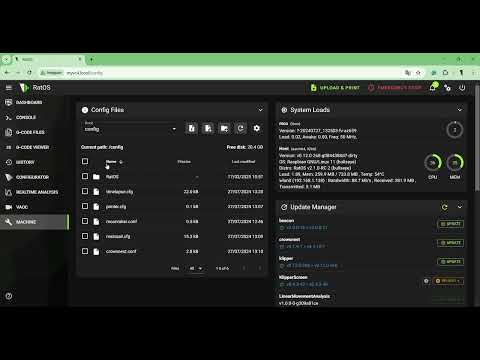
¶ Video Tutorial
¶ 03. Initial Configuration
This chapter covers the VAOC configuration and the initial steps for setting up and operating the IDEX machine. We are working on automating this process.
Note!
If you are upgrading from a hybrid machine, pre-configured, disable performance mode in the RatOS configurator.
-
Open the Configurator (1) from the left-side menu.
-
Go to the Setup Wizard (2).
-
In the Printer Selection menu (3), choose the IDEX (4) variant that matches your machine's size.


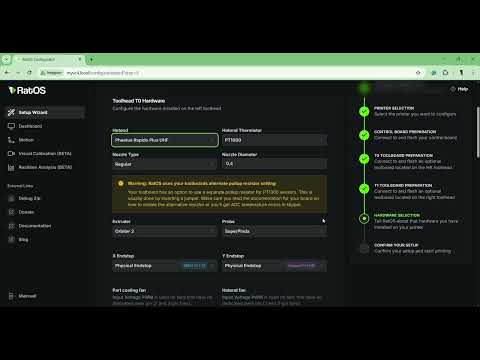
Follow the rest of the configurator to choose and flash your controller and toolboard, as well as select the appropriate hardware. During the configurator process, the standard V-Core 4.0 components are pre-selected. Unless your machine is not a standard kit, you should not need to change any parameters.
¶ Video Tutorial
¶ 04. Configure the Z Endstop & VAOC LED
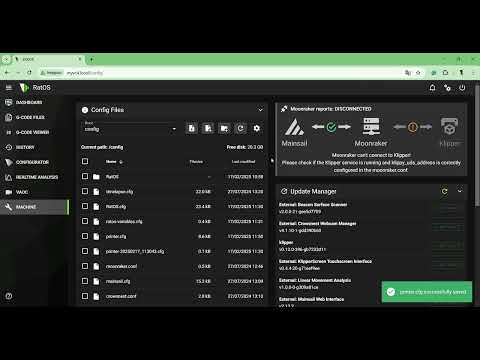
- On the left-side menu, click "Machine" (1), and then open the "printer.cfg" (2) file.

- Copy and paste the code lines below into the printer.cfg file. Be sure to place them at the end of the file, but before the SAVE_CONFIG section.
Warning!
Any modifications made below this line will be overwritten, which could result in an incorrect cofiguration.

[z_offset_probe]
pin: ^PG10                   # probe trigger pin
z_offset: -7                 # probe height, used to limit the probe z-move
y_offset: 0                  # probe y-offset, measured from the camera centre
x_offset: 37.5               # probe x-offset, measured from the camera centre
speed: 10                    # probe speed
samples: 3                   # number of samples
sample_retract_dist: 5
lift_speed: 10.0
samples_result: median
samples_tolerance: 0.2
samples_tolerance_retries: 5

[neopixel vaoc_led]
pin: PB0
chain_count: 6
color_order: GRB

[heater_fan vaoc_fan]
pin: PD13
heater: heater_bed
fan_speed: 1.0
heater_temp: 50
- Click the "SAVE & RESTART" button on the top right of the window. The machine will then restart with the new parameters applied.
¶ 05. Configure the VAOC camera
-
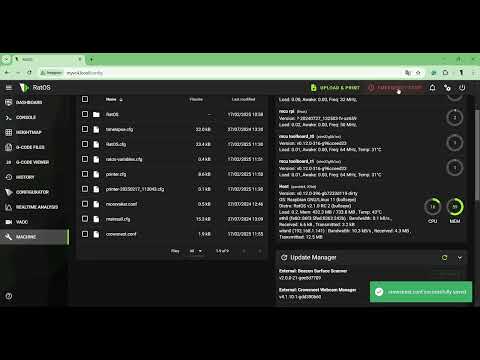
On the left-side menu, click "Machine" (1), and then open the "crowsnest.conf” (2) file.
-
Replace the [crowsnest] section and the [cam 1] section with the code below:
[crowsnest]
log_path: /home/pi/printer_data/logs/crowsnest.log
log_level: verbose
delete_log: false
no_proxy: false
[cam 1]
mode: camera-streamer
enable_rtsp: false
rtsp_port: 8554
port: 8080
device: /dev/video0
resolution: 1920x1080
max_fps: 30
-
Click the "SAVE & RESTART" button on the top right of the window. The machine will then restart with the new parameters applied.
-
Open the VAOC tab on the left menu to check if there is an image being shown.
Help!
If the VAOC camera does not display an image, there are two primary causes to investigate:
Crowsnest Configuration Issues: The configuration file may contain an error, such as a typo or incorrect formatting. Review the file carefully to ensure it is correctly configured.
Connection Issues: The camera may not be properly connected. Check both the USB connection to the Raspberry Pi and the PCB camera connector.Additionally, inspect the PCB ribbon cable to ensure it is securely attached and undamaged.
As a troubleshooting step, try connecting the camera via USB to a computer to verify if it functions correctly.
¶ Next Guide
- Continue to the next guide: 02. Sanity Check